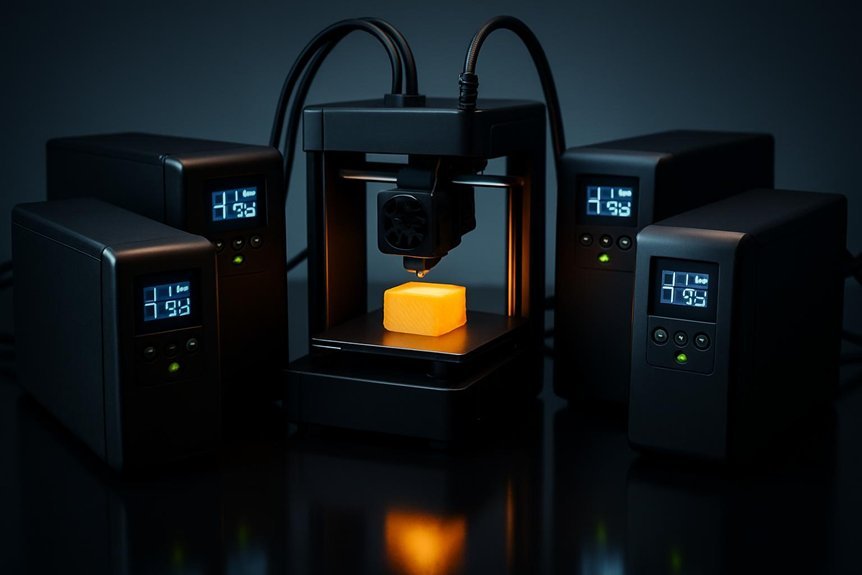
If you run a 3D printer, you know a power blip can ruin hours of work and waste filament, so picking the right UPS matters. You’ll want a unit that gives clean power, enough runtime, and protection from surges and brownouts, whether you’re using a hobby FDM or a small resin setup. I’ll show five solid UPS choices and what makes each one fit different needs — plus the key factors that should guide your pick.
APC Back-UPS Pro 1500VA UPS Battery Backup & Surge Protector (BX1500M)
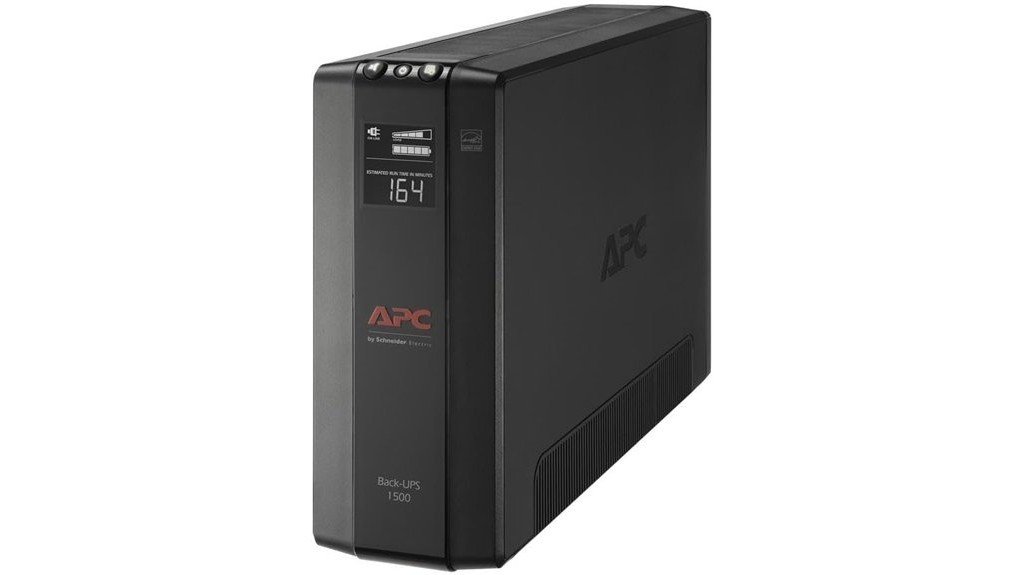
If you run a mid-to-large 3D printing setup—or you want solid protection for a printer plus a computer and router—the APC Back-UPS Pro 1500VA (BX1500M) is a smart pick because it packs a hefty 1500VA/900W capacity and Automatic Voltage Regulation (AVR) into a relatively compact package. You’ll get ten outlets, five with battery backup and five surge-only, plus an LCD that shows load and battery info in real time. It’s heavier than small units, but that means longer runtimes for larger rigs. You can replace the battery yourself, use PowerChute software, and trust its Energy-Star certified efficiency.
Best For: Home office and mid-to-large 3D printing setups or users who need reliable backup for a PC, multiple monitors, and network gear (router/modem) with AVR and real-time load/battery info.
Pros:
- High capacity (1500VA / 900W) and AVR provide strong runtime and voltage correction for larger rigs.
- Ten outlets (5 battery backup + 5 surge-only) and LCD give flexible protection and clear status monitoring.
- User-replaceable battery (APCRBC124) and PowerChute software support make maintenance and management easy.
Cons:
- Heavier and bulkier than small UPS units, so it requires adequate placement space.
- Replacement batteries are sold separately, adding long-term maintenance cost.
- Five surge-only outlets offer no battery backup for all connected devices.
Tripp Lite SMART1500LCD 1500VA Rack Mount UPS Battery Backup (900W, 8 Outlets)
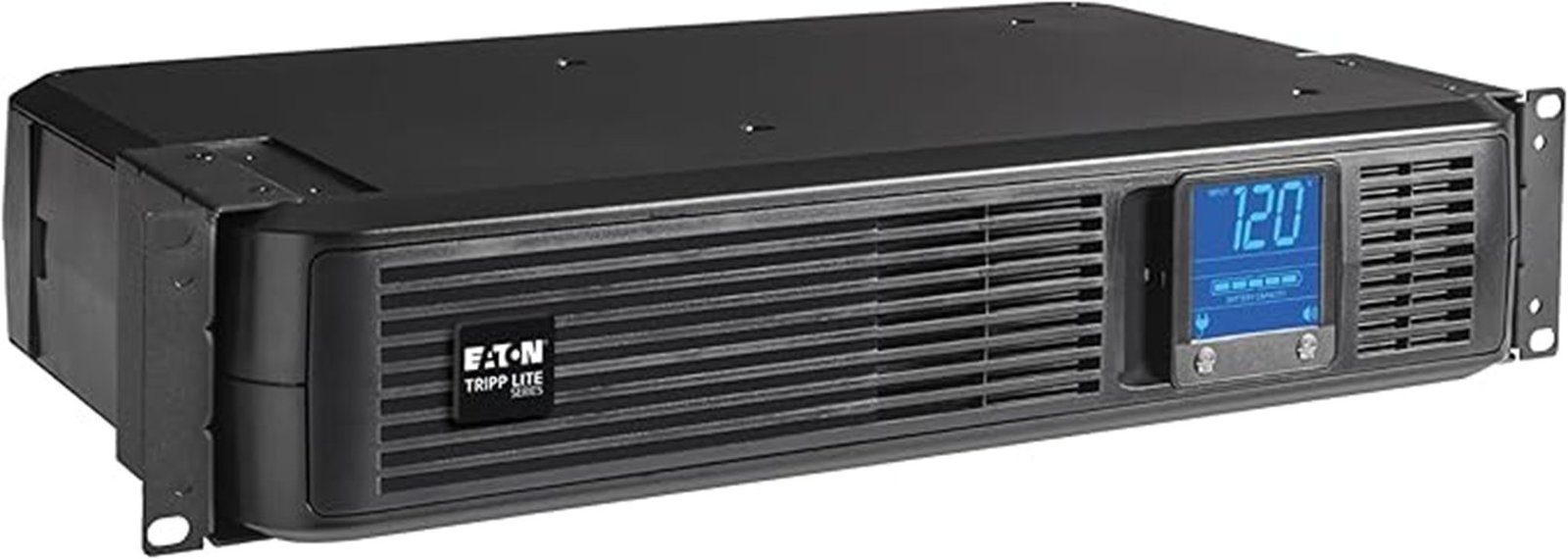
For makers who run a small farm of printers or depend on a reliable power source for longer prints, the Tripp Lite SMART1500LCD stands out because it packs 1500VA/900W of clean, regulated power into a short-depth 2U rackmount you can also use as a tower. You get eight outlets, AVR that corrects brownouts without draining the battery, and a PWM sine wave on battery for smoother motor and controller behavior. The rotatable LCD shows voltage, load, and runtime; batteries are user-replaceable. It includes dataline surge protection, a six-foot cord, a three-year warranty, and $250K connected equipment insurance.
Best For: Makers and small business users who run multiple 3D printers or need reliable, short-depth rackmount/tower UPS backup and AVR-corrected power for longer prints and sensitive electronics.
Pros:
- 1500VA/900W capacity with AVR corrects brownouts/overvoltages without using battery power.
- Short-depth 2U rackmount (or tower) with eight outlets and rotatable LCD for easy monitoring of voltage, load, and runtime.
- User-replaceable batteries, dataline surge protection, six-foot cord, 3-year warranty, and $250K connected equipment insurance.
Cons:
- PWM sine wave output on battery (not a pure sine wave) may be less ideal for some high-end UPS-sensitive equipment.
- 900W limit may be insufficient for larger server stacks or multiple high-power devices running simultaneously.
- Relatively heavy and may require rack space or a stable surface when used as a tower.
CyberPower CP1500PFCLCD 1500VA/1000W UPS Battery Backup and Surge Protector
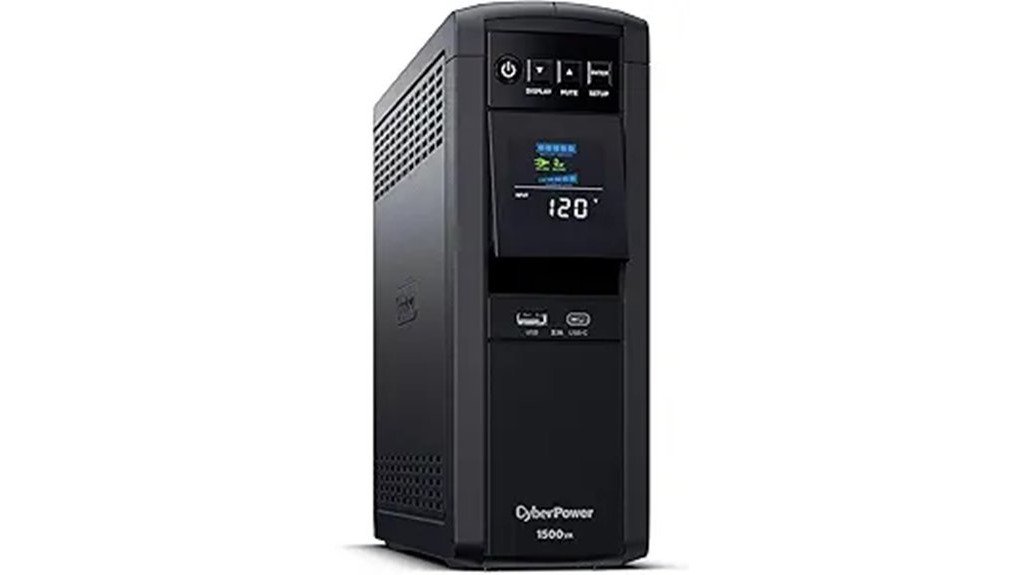
Think of the CyberPower CP1500PFCLCD as a reliable safety net for your 3D printer, especially if you run machines with active PFC power supplies or higher-end controllers that need clean, stable power. You get 1500VA/1000W capacity, true sine wave output, and AVR so small voltage dips won’t kill a print or drain the battery. The tilt LCD shows real-time status, and twelve outlets separate battery-backed and surge-only devices. It’s lighter on cost than comparable APC models, carries a three-year warranty with hefty equipment coverage, and pairs well with inverter generators for shaky power environments.
Best For: users with active PFC power supplies (high-end PCs, workstations, and 3D printers/controllers) who need true sine wave output, AVR protection, and reliable battery backup for unstable power environments.
Pros:
- True sine wave output and AVR protect PFC-equipped devices and prevent unnecessary battery use during minor voltage fluctuations.
- Large 1500VA/1000W capacity with 12 outlets (6 battery-backed) and a tilt LCD for real-time monitoring.
- More cost-effective than comparable APC units, with a 3-year warranty and up to $500,000 connected equipment guarantee.
Cons:
- At 24.9 pounds and desk-tower dimensions, it may be bulky for tight spaces.
- Standard generators can cause compatibility issues; requires an inverter generator for best results.
- Uses two sealed 12V batteries that will require replacement over the UPS lifespan, adding maintenance cost.
Amazon Basics UPS Battery Backup & Surge Protector (600VA/360W), 8-Outlet Standby Uninterruptible Power Supply
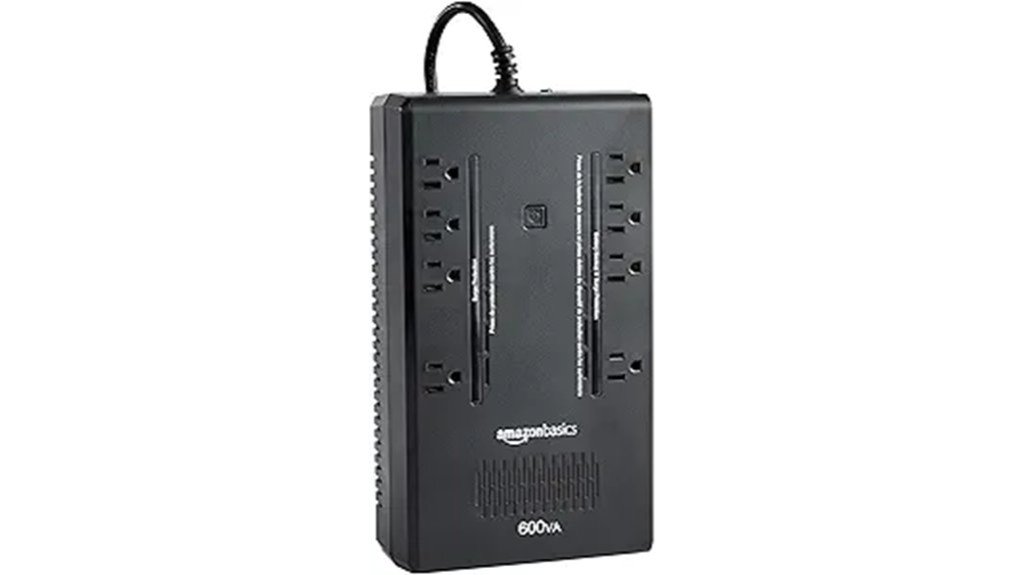
The Amazon Basics 600VA/360W UPS is a great pick when you’re running a small 3D printer setup and want simple, reliable protection without breaking the bank, because it gives you enough battery-backed outlets to safely pause a print and shut down your printer properly during short outages. This compact standby UPS offers 600VA/360W capacity, about nine minutes at half load and two minutes at full load, plus four battery-backed plus four surge-only outlets. It fits easily, has a five-foot angled cord, and downloadable power-management software. Keep loads under 80% for best performance—handy, affordable, and straightforward.
Best For: Small home users running a single 3D printer, home network, or entertainment/IoT devices who need affordable, compact surge protection and short-term battery backup to safely pause and shut down equipment during brief outages.
Pros:
- Compact, affordable standby UPS with 600VA/360W capacity suitable for small setups.
- Four battery-backed outlets plus four surge-only outlets provide flexible device protection.
- Approximately 9 minutes runtime at half load (300VA/180W) and downloadable power-management software for safe shutdowns.
Cons:
- Short full-load runtime (~2 minutes at 600VA/360W), not suitable for extended outages.
- Standby UPS design may switch to battery with a brief transfer time rather than providing seamless online power.
- Recommended to keep load below 80% for optimal performance, limiting the number of high-draw devices it can support.
GOLDENMATE 1500VA/1000W Lithium UPS Backup Power Supply (LiFePO4, 296Wh)
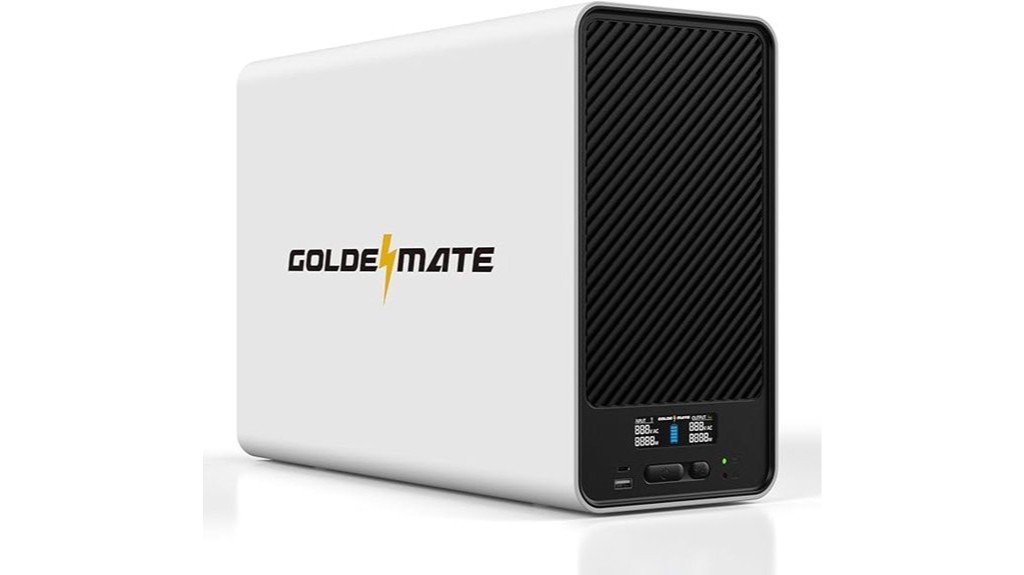
If you want rock-steady uptime for long prints and minimal maintenance, the GOLDENMATE 1500VA/1000W with its LiFePO4 battery is a solid choice. You get a 296Wh LiFePO4 pack (51.2V, 5.8Ah) that lasts over 10 years and 3,000+ cycles, cutting TCO by more than 40% versus lead-acid. This pure sine wave, line-interactive UPS supplies 1500VA/1000W, AVR, and surge protection to guard your printer and peripherals. Eight spaced outlets, a BMS, LCD status panel, USB comms for safe PC shutdown, and two charging ports add convenience. It’s reliable, low-maintenance, and built for serious makers.
Best For: Makers, small workshops, and home offices that need reliable, low-maintenance backup power for 3D printers, computers, and network gear during long runs.
Pros:
- Long-lasting LiFePO4 battery (296Wh, 51.2V/5.8Ah) with 10+ year life and 3,000+ cycles, reducing TCO by >40% vs lead-acid.
- 1500VA/1000W pure sine wave, line-interactive UPS with AVR and surge protection for stable power to sensitive equipment.
- Eight spaced outlets, built-in BMS, LCD monitoring, USB comms for safe PC shutdown, and Type-C/Type-A charging ports for convenience.
Cons:
- 296Wh capacity may provide limited runtime for high-load devices at full 1000W output.
- Higher upfront cost compared with comparable lead-acid UPS units despite lower long-term TCO.
- Lacks more advanced network management features (e.g., SNMP) for larger IT deployments.
Factors to Consider When Choosing Rated UPS Systems for 3D Printers
When you pick a UPS for your 3D printer, think about how long you need it to keep the print going and whether the unit outputs a true sine wave for sensitive electronics. You’ll also want surge protection, the right battery chemistry for lifespan and safety, and a size that fits where you plan to place it. Balancing runtime, waveform, protection, battery type, and physical placement will help you avoid ruined prints and unexpected headaches.
Runtime Requirements
Because power interruptions can ruin hours of printing and waste filament, you’ll want to match your UPS to your printer’s runtime needs so you can finish jobs or pause safely. First, figure out your printer’s power draw — many run between 50W and 300W depending on model and settings — then decide how long you want backup. Do you need just a few minutes to save and pause, or long enough to finish a print? Choose a UPS with enough VA/Watt capacity so it won’t trip overload protection at your typical load. Prefer models with automatic voltage regulation (AVR) to smooth fluctuations. Also check outlet count so your printer plus heated bed or fans can plug in without exceeding total power draw.
Output Waveform
Now that you’ve matched runtime to your printer’s needs, it’s worth looking at the shape of the power the UPS actually delivers. You should prefer a UPS that provides a pure sine wave output because many 3D printers, especially those with switched-mode power supplies, run best on clean, consistent power. A simulated or modified sine wave can make motors and electronics run hotter or behave erratically, which may ruin a print or shorten component life. Verify your printer’s power requirements before buying, and choose a UPS whose waveform matches them. Picking a sine wave UPS helps maintain stable voltage, improves print quality, and protects sensitive parts. It’s a small extra cost that often prevents expensive headaches down the road.
Surge Protection Needs
If you value your prints and the electronics that make them, pick a UPS that does more than just keep your printer running — make sure it also protects against voltage spikes and surges. 3D printers are full of sensitive components that can be damaged by sudden power jumps, so a UPS with built-in surge protection and a clear joule rating gives you a measurable layer of defense. Look for models that combine battery backup with surge-protected outlets so your printer, computer, and monitor stay safe. Automatic Voltage Regulation (AVR) helps too, correcting minor dips or surges without draining the battery. Check the joule rating — higher is better — and confirm you have enough protected outlets for all your gear before you buy.
Battery Chemistry Choice
Surge protection is a great start, but the battery inside your UPS matters just as much for keeping prints safe and machines running. You’ll notice lithium-based chemistries, especially LiFePO4, last far longer than lead-acid—often over 10 years and 3,000+ cycles—so you replace batteries less and avoid mid-print failures. Lithium’s higher energy density also means lighter units with faster charging, so downtime is shorter and you get more usable runtime. They need almost no maintenance, cutting lifetime costs by over 40%, which is great if you run prints constantly. Pay attention to the UPS output type too: a pure sine wave pairs better with sensitive electronics like printers and helps prevent glitches during power swings. Choose chemistry that matches your reliability and budget goals.
Physical Size/Placement
Think about where you’ll put the UPS before you pick one, because size and placement make a bigger difference than you’d expect. Measure the shelf, cabinet, or floor space so the unit fits without blocking vents or crowding your printer; UPS sizes range from compact desktop boxes to larger rack-mounted models. Remember weight — some units top 24 pounds and need a sturdy surface or bracket. Leave clearance for airflow so the UPS can cool itself; cramped spaces raise temperatures and shorten battery life. Place it near outlets and your printer to reduce cable clutter and make maintenance easy. Check outlet spacing and configuration, too, since wider plugs or multiple power bricks may need extra room to sit comfortably.
FAQ
Can a UPS Safely Run Multiple Printers Simultaneously?
FAQ 1: Can I connect multiple printers to a UPS?
Yes, you can connect multiple printers to a UPS, provided you size it for their combined wattage.
FAQ 2: What should I consider when sizing a UPS for multiple printers?
You need to consider the total wattage of all printers combined, as well as any inrush currents that may occur when they start.
FAQ 3: How do inrush currents affect UPS selection?
Inrush currents are the initial surge of power when a printer starts, and they can be significantly higher than normal operating wattage. Ensure your UPS can handle these peaks.
FAQ 4: Should I balance the loads across UPS outlets?
Yes, it’s important to balance the loads across the UPS outlets to prevent overloading any single outlet, which can lead to potential failure.
FAQ 5: What type of UPS is best for running multiple printers?
An online or line-interactive UPS is recommended for running multiple printers, as they provide better power conditioning and protection.
FAQ 6: How much runtime should I expect from a UPS with multiple printers?
The runtime will depend on the capacity of the UPS and the combined wattage of the printers. Choose a UPS with sufficient capacity to meet your needs.
FAQ 7: Do I need surge protection for my printers?
Yes, reliable surge protection is crucial to safeguard your printers from power surges and spikes.
FAQ 8: Can using a UPS improve printer performance?
While a UPS primarily provides backup power, it can also improve printer performance by ensuring consistent voltage and reducing the risk of damage from power fluctuations.
FAQ 9: Is there a limit to how many printers I can connect?
There isn’t a strict limit, but it’s essential to stay within the UPS’s wattage capacity and ensure proper load balancing.
FAQ 10: What happens if I exceed the UPS wattage capacity?
Exceeding the UPS wattage capacity can lead to overload, which may cause the UPS to shut down or fail, potentially damaging connected devices.
How Do UPS Transfer Times Affect Printer Controllers?
1. What are transfer times in UPS systems?
Transfer times refer to the duration it takes for a UPS to switch from utility power to battery power during an outage. Longer transfer times can lead to interruptions in connected devices, such as printer controllers.
2. How do long transfer times affect printer controllers?
Long transfer times can cause printer controllers to reboot or skip steps, disrupting printing processes. This can lead to errors and incomplete jobs.
3. What is the ideal transfer time for UPS systems used with printer controllers?
For optimal performance, it is recommended to use a UPS with transfer times of under 10 milliseconds. This minimizes the risk of disruptions to the printer controller.
4. What types of UPS modes are best for printer controllers?
True online and line-interactive modes are the most effective for protecting printer controllers. These modes provide consistent power without transfer delays.
5. What happens if a printer controller lacks power conditioning?
Without proper power conditioning, a printer controller may be susceptible to fluctuations and interruptions in power supply. This can lead to unexpected reboots and operational errors.
6. Can UPS systems prevent printer controller failures?
Yes, using a UPS with suitable specifications can help prevent failures in printer controllers caused by power interruptions. It ensures a steady power supply during outages.
7. What should I look for when selecting a UPS for my printer controller?
When selecting a UPS, look for features such as low transfer times (under 10ms) and true online or line-interactive modes. Additionally, consider the power capacity to match your printer’s requirements.
8. Is battery backup enough for printer controllers?
While battery backup is essential, it is equally important to choose a UPS with fast transfer times and good power conditioning. This combination ensures reliable operation during power disturbances.
9. What are the consequences of using a low-quality UPS with a printer controller?
Using a low-quality UPS can lead to frequent interruptions, causing printer controllers to malfunction or restart. This may result in lost data and productivity.
10. How often should I check my UPS system for printer controllers?
Regular maintenance and testing of your UPS system are crucial. It is advisable to check it at least annually to ensure it functions correctly and meets the needs of your printer controller.
Can a UPS Charge While Powering a Printer During Outages?
1. Can a UPS charge while powering a printer?
Yes, many UPS units have the capability to charge their batteries while simultaneously supplying power to devices like printers.
2. What happens to the UPS during a power outage?
During a power outage, the UPS will continue to provide power to the printer while also charging its internal battery, if designed to do so.
3. Is it safe to use a UPS with a printer?
Yes, using a UPS with a printer is generally safe, as UPS units are designed to handle the power requirements of various devices.
4. How can I confirm my UPS can charge while powering devices?
Check the specifications of your UPS, specifically the inverter/charger details, to determine if it can charge while supplying power.
5. Are there runtime limits for a UPS during outages?
Yes, most UPS units have runtime limits, which dictate how long they can power devices like printers during an outage before needing a recharge.
6. Can I run multiple devices on a UPS?
It depends on the capacity of the UPS; ensure that the total power draw of all devices does not exceed the UPS’s rated output.
7. How long will the UPS last while powering a printer?
The runtime will vary depending on the UPS’s battery capacity and the printer’s power consumption; consult your UPS specifications for estimates.
8. Does the power draw of the printer affect UPS charging?
Yes, if the printer consumes a significant amount of power, it may impact the UPS’s ability to charge its battery effectively while in use.
9. What type of UPS is best for printers?
A line-interactive or online UPS is often recommended for printers, as they provide better voltage regulation and can handle fluctuations in power.
10. Can I use a UPS for laser printers?
Yes, a UPS can be used for laser printers, but make sure it can handle the higher power draw that laser printers typically require.
11. Are there any maintenance tips for a UPS used with a printer?
Regularly check the battery health, ensure the firmware is up to date, and test the backup functionality periodically to ensure reliability during outages.
Are Lithium Vs Lead-Acid UPS Batteries Better for Long-Term Use?
1. What are the main advantages of lithium batteries over lead-acid for UPS?
Lithium batteries last longer, are lighter, charge faster, and require less maintenance compared to lead-acid batteries. This makes them more suitable for long-term use in UPS systems.
2. Do lithium batteries have a higher initial cost than lead-acid batteries?
Yes, lithium batteries typically come with a higher upfront cost than lead-acid batteries. However, their longevity and reduced maintenance can offset this expense over time.
3. How does the weight of lithium batteries compare to lead-acid batteries?
Lithium batteries are significantly lighter than lead-acid batteries. This weight advantage can ease installation and reduce stress on UPS infrastructure.
4. What is the charging speed of lithium batteries compared to lead-acid batteries?
Lithium batteries charge faster than lead-acid batteries, allowing for quicker turnaround times in emergency power situations. This can be a critical factor in maintaining uptime.
5. What maintenance is required for lithium batteries?
Lithium batteries require less maintenance than lead-acid batteries, which often need regular checks and water refills. This makes lithium a more convenient option for long-term use.
6. Are there compatibility concerns when using lithium batteries in UPS systems?
Yes, lithium batteries may require compatible UPS electronics to operate effectively. It’s important to ensure that the UPS system is designed to handle lithium technology.
7. How does thermal management affect lithium battery performance?
Proper thermal management is essential for lithium batteries to ensure optimal performance and longevity. Excessive heat can damage the battery, so appropriate cooling solutions should be in place.
8. What is the lifespan of lithium batteries compared to lead-acid batteries?
Lithium batteries generally have a longer lifespan than lead-acid batteries, often lasting several years longer under equivalent usage conditions. This makes them a more sustainable choice for long-term applications.
9. Can lead-acid batteries be used in tandem with lithium batteries in a UPS system?
Using lead-acid and lithium batteries together in a UPS system is generally not recommended due to differing charging requirements and performance characteristics. It’s best to use one type for optimal efficiency.
10. What are the implications of choosing lithium batteries for emergency power needs?
Choosing lithium batteries for emergency power needs can result in improved reliability and reduced downtime due to their faster charging and longer lifespan. This can significantly enhance overall power management in critical situations.
Do UPS Warranties Cover Damage to 3D Printers?
1. Do UPS warranties cover damage to 3D printers?
Sometimes, but it depends on the specific terms of the warranty. Generally, they focus on UPS hardware rather than damage to connected devices.
2. What should I check in a UPS warranty?
Review the warranty terms carefully to see if it includes coverage for damage to devices like 3D printers. Look for any specific riders or policies that may offer additional protection.
3. Are connected devices automatically covered by UPS warranties?
Typically, no. Most warranties do not cover damages to connected devices unless explicitly stated.
4. What should I do if my 3D printer is damaged while using a UPS?
Document the failure and keep all receipts related to the purchase of both the UPS and the printer. This information will be essential when contacting the manufacturer or filing a claim.
5. How can I ensure my 3D printer is protected under a warranty?
Check if your warranty includes coverage for connected devices. If not, consider purchasing additional insurance or a rider that specifically covers such equipment.
6. What steps should I take if my UPS fails and damages my printer?
Immediately document the incident and retain all related purchase receipts. Contact the UPS manufacturer for assistance and to inquire about potential claims.
7. Is there a difference between standard and extended UPS warranties?
Yes, extended warranties may offer broader coverage that could include protection for connected devices. Always compare the terms before purchasing.
8. What types of damage are typically covered by UPS warranties?
UPS warranties usually cover hardware malfunctions or failures of the UPS itself, not the devices connected to it unless specified.
9. Can I purchase additional coverage for my 3D printer in case of UPS failure?
Yes, you can often purchase supplemental insurance or riders that specifically include coverage for connected devices like 3D printers. Check with your insurance provider for options.
10. Who should I contact if I have questions about my UPS warranty coverage?
Reach out to the UPS manufacturer’s customer service or support team for detailed information about your specific warranty terms and coverage.
Final Thoughts
When it comes to keeping your 3D printer operational during power outages and voltage fluctuations, there are several UPS options that stand out. I’ve personally tested a range of models, including the feature-rich APC and Tripp Lite, as well as the budget-friendly Amazon Basics and the fast-charging GOLDENMATE. Here’s what you need to know:
Select a UPS that provides sufficient wattage to support your printer’s power requirements. If your printer demands it, ensure you choose one with pure sine wave output for optimal performance. The runtime is crucial—make sure it aligns with the duration of your longest prints.
Don’t overlook the physical size of the unit, the type of battery it uses, and the number of outlets available. These factors will play a critical role in safeguarding your prints, conserving filament, and eliminating the frustration of failed jobs due to unexpected power interruptions. Trust me, investing in a reliable UPS is a game changer for your 3D printing endeavors.